How to Share Your Family Tree With Relatives
Quick answer: Open "Backup" in the app and choose "Save as image". You get a ready-made picture of your tree you can send by WhatsApp, email or print out. If someone should be able to edit it themselves, share the backup file instead.
FamilyTree Free has no account and no cloud — your family data lives only on your own device. That also means there is no "share" link like you'd get from a Google Doc that you can just send around. Instead there are two simple ways to share your tree with family, depending on whether the other person should just view it or help build it.
Why there is no share link
A link would mean your family data sits on a server somewhere so others can open it — exactly what FamilyTree Free is built to avoid. Everything stays in your browser, on your device. The trade-off is that sharing takes one small extra step. The upside: nobody but you decides who gets to see your tree.
Option 1: Save as image — the fastest option
For most occasions, an image is all you need: showing it at the next family gathering, sending it to a grandparent over WhatsApp, or printing it for the wall.
Open "Backup" in the menu and choose "Save as image". FamilyTree Free renders the entire tree — not just what's currently visible on screen — into a single image file with names, dates and the connecting lines between people. Here's an example of what that looks like:
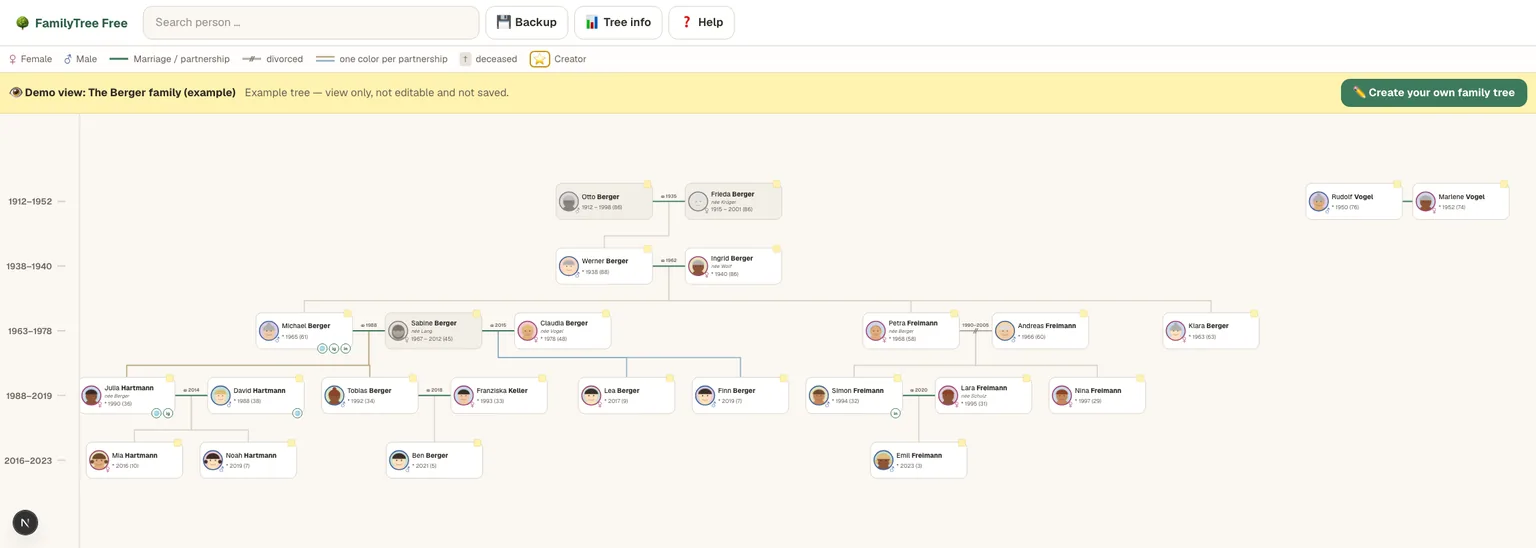
The big advantage: whoever receives the image needs nothing else — no app, no account, no sign-up. It's just a picture, like any photo.
The one catch: the image is a snapshot. If the tree changes later — a birth, a wedding, a new person — you'll need to export and send a fresh one.
Option 2: Share the backup file — when others should help build it
Sometimes family shouldn't just look at the tree, but add or correct people themselves — a sibling who knows more about their own side, for example. For that, the backup file (a .json file containing the whole tree, photos included) is the right tool.
Download it via "Backup" → "Back up", then send it — by email or through a cloud storage service of your choice — to that person. They can load the file into their own copy of FamilyTree Free via "Restore" and edit it from there.
One thing worth knowing: this creates an independent copy. There is no automatic sync between the two trees. If several family members make changes in parallel, you'll need to agree on whose version is current — easiest is to treat one copy as the "main" version and have additions sent back to it.
Practical tips for sharing
- Check before you send: Take a quick look at notes and photos before sharing. What feels like a harmless memory to you might not be meant for the whole group of recipients.
- For very large trees: the exported image can get fairly large with many people in it, but it's still comfortably small enough for messaging apps.
- Share often, not just once: rather than sharing your tree a single time, it's worth sending an updated image after major events — a birth, a wedding.
Next step
Don't have your own family tree yet? You can start right away: create a family tree for free. No sign-up, no cloud, no server storage of your family data.
Further reading
- Create a Family Tree for Free: Beginner Guide
- Printable Ancestor Chart
- Family Data and Privacy
- Back up family memories: the 3-2-1 rule
FAQ
Can I share my family tree with a link?
No. FamilyTree Free doesn't store anything on a server, so there is no link to share. Use the image export or the backup file instead.
How do I share my family tree with someone who should also be able to edit it?
Export the backup file via "Backup" → "Back up" and send it to them. They can open and edit it in their own copy of FamilyTree Free via "Restore".
Is the exported image still up to date if I change something later?
No. The image is a snapshot from the moment you exported it. After bigger changes, it's easiest to just export it again.
Will the person who gets the image also see the photos?
Yes, photos are embedded in the exported image, just like they appear in the tree itself.